
How to optimize PrestaKick so AI answers accurately and recommends the right products
AI performs well only when product data is complete, images are accurate, translations are consistent, and synchronization is reliable. This guide shows how to prepare your data, configure PrestaKick, test privately with Preview IPs, and enable only the AI features you need.

An AI sales assistant does not automatically understand your store as soon as it is installed. The quality of every answer depends on the data it can use, how quickly changes are synchronized, and the rules you set for the assistant.
PrestaKick uses synchronized PrestaShop data for customer conversations, semantic search, visual search and product recommendations. Before making the Widget public, optimize the following three layers together.
- Source data in PrestaShop must be complete and accurate.
- The connection, cron and synchronization process must be reliable.
- The tone, answer scope and enabled AI features must match your actual needs.
1. Start with product data, not with the prompt
If a customer asks whether a product can be used outdoors, AI can answer confidently only when the product data includes its intended use, materials or protection rating. Generic marketing claims do not provide enough evidence for reliable advice.
Do not hard-code frequently changing prices or stock in descriptions. Use the proper PrestaShop price, combination and inventory fields. Product names, descriptions, attributes and variants must also agree; a 500 ml title combined with an old 450 ml description creates avoidable uncertainty.
- A clear name with the correct model and version.
- A short value-focused description and a detailed explanation of uses, audience and scenarios.
- Materials, dimensions, weight and important technical specifications.
- Available colors, capacities, sizes and variants.
- Compatibility with devices, accessories or other products.
- Instructions for use, cleaning, storage or installation.
- Known limits, such as not waterproof or unsuitable for young children.
- Warranty, returns and delivery information in the relevant policy pages.
2. Use the right categories and complete your content pages
Categories help the system understand what a product is and which needs it serves. Broad or incorrect categories reduce search and recommendation quality. Give every category a customer-friendly name, useful description, selection criteria and a logical parent–child structure.
Complete the CMS pages customers rely on. Empty, outdated or unsynchronized policies leave the assistant without a trustworthy source.
- Shipping policy.
- Returns and refunds policy.
- Warranty conditions.
- Size selection guide.
- Usage and care instructions.
- Frequently asked questions.
3. Use images that match the actual product
Images affect both the shopping experience and Vision Search. If an accessory dominates the main image, visual search may identify the wrong object. Keep the product being sold as the clear subject.
- Use the correct product, model and color; never substitute another version.
- Provide matching images for color variants where supported.
- Include front, back, detail and in-use views.
- Avoid crowded collages, placeholders and decorative images.
- Keep colors realistic and compress clear images without slowing the storefront.
4. Use AI Content to standardize content before synchronization
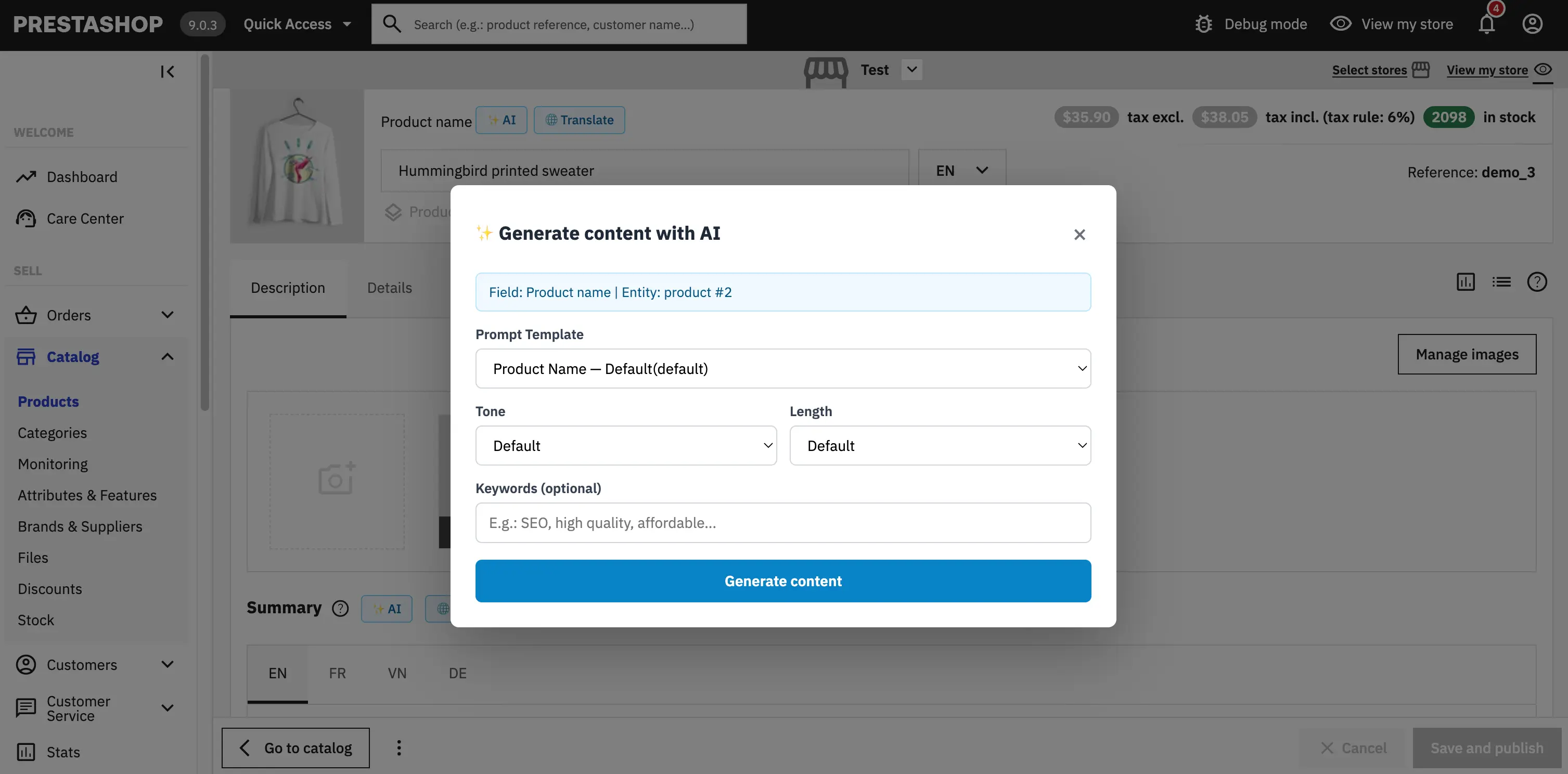
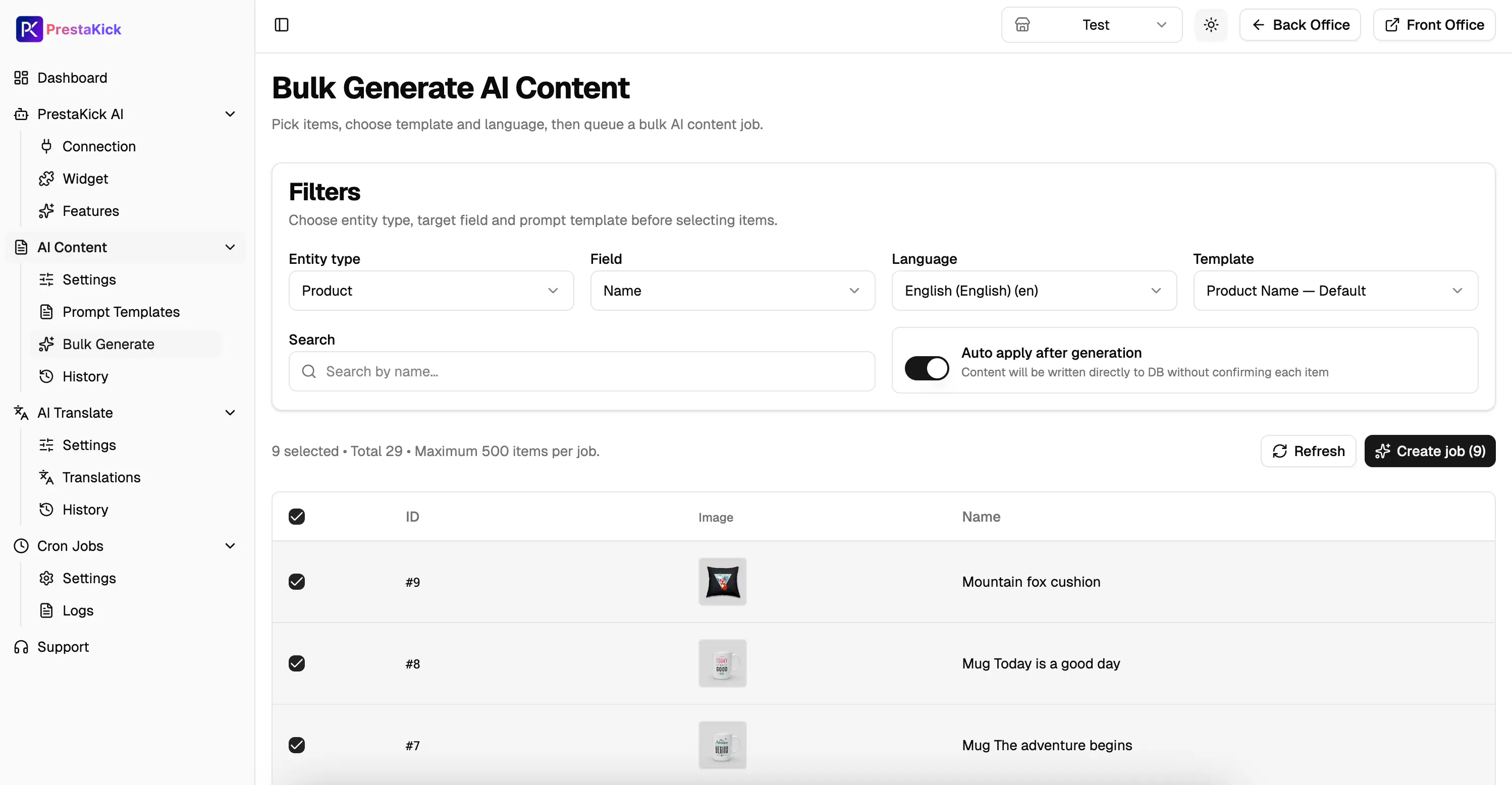
The PrestaKick module provides AI Content for products, categories and CMS pages, either in the editor or through bulk jobs. Use it to express verified facts clearly, never to invent missing specifications.
Review numbers, compatibility, warranty promises, safety instructions and brand terminology. Bulk jobs run in the background through cron, so cron must remain active and job history should be monitored.
- Enter verified facts first: model, material, specifications, audience and differentiators.
- Choose a template suited to the page type.
- Set the desired tone and generation rules.
- Use Generate with AI or create a bulk job.
- Review the result before saving and publishing.
5. Use AI Translate to complete every language
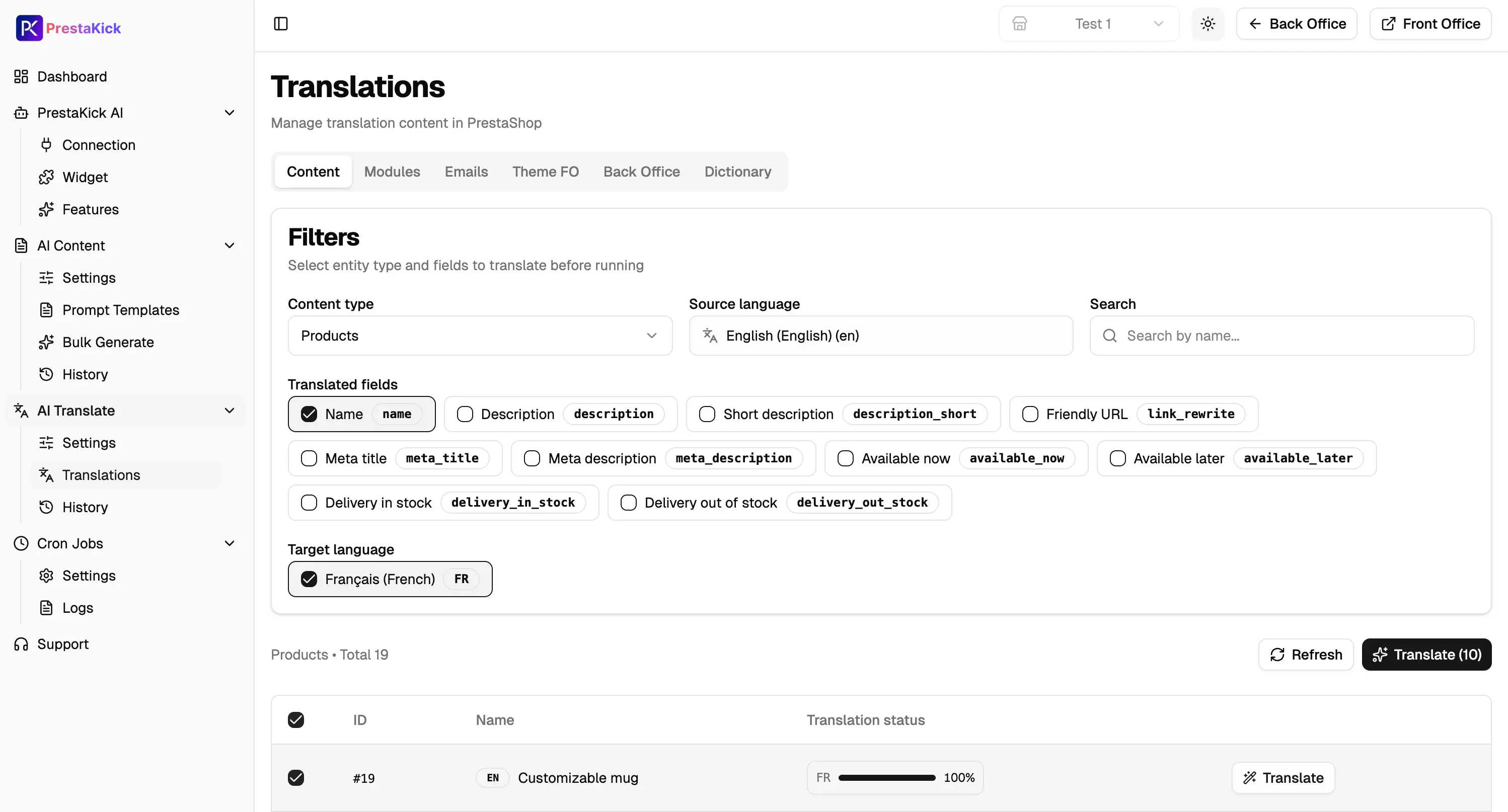
Translating only the Widget interface is not enough. Products, categories and content pages need accurate versions for every customer language. Brand names, SKUs and model codes usually remain unchanged, while a custom glossary keeps specialist terminology consistent.
Open every language version in PrestaShop after translation. Natural wording with an incorrect measurement still produces incorrect advice. Complete synchronized translations give PrestaKick better sources for localized search and answers.
- Select the correct source language and every active target language.
- Configure the translation provider and a glossary for brands, codes and technical terms.
- Define exactly which content may be overwritten.
- Verify units, dimensions, variant names and policy conditions.
6. Connect the module and verify its real status
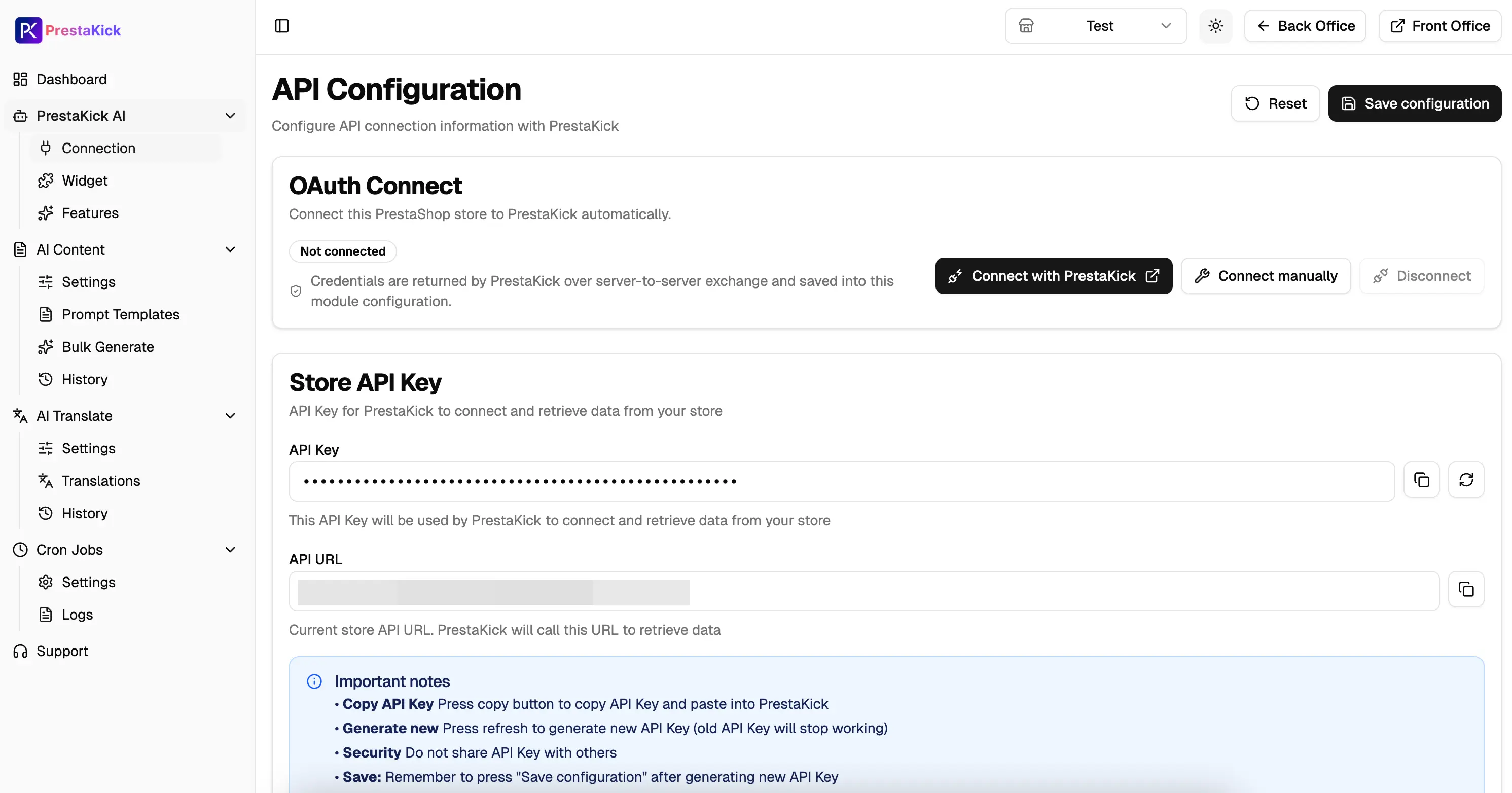
In PrestaShop Back Office, open PrestaKick AI → Connection and use Connect with PrestaKick. After OAuth, verify Connected, save the configuration, run Test connection when available, and confirm access to products, categories and CMS pages.
Connected means the credentials work; it does not mean all data is synchronized. Healthy indicates recent activity and a normal queue. Degraded means stale activity or a growing queue, Offline means no recent signal, and Unknown usually means there is not enough data yet. Continue AI testing only after the connection is stable.
7. Run cron every minute
Changes are added to a queue and cron sends them to PrestaKick. In Cron Jobs → Settings, copy the command generated by the module and schedule it every minute on your hosting. Never publish the real URL because it contains a security token.
Use Run now, inspect Cron Jobs → Logs, and confirm the latest run succeeds without repeated authentication or connection errors. One-minute processing keeps the queue responsive, although AI indexing may take a little longer.
* * * * * curl -fsS "<YOUR_CRON_URL>"8. Run a full synchronization and reconcile the result
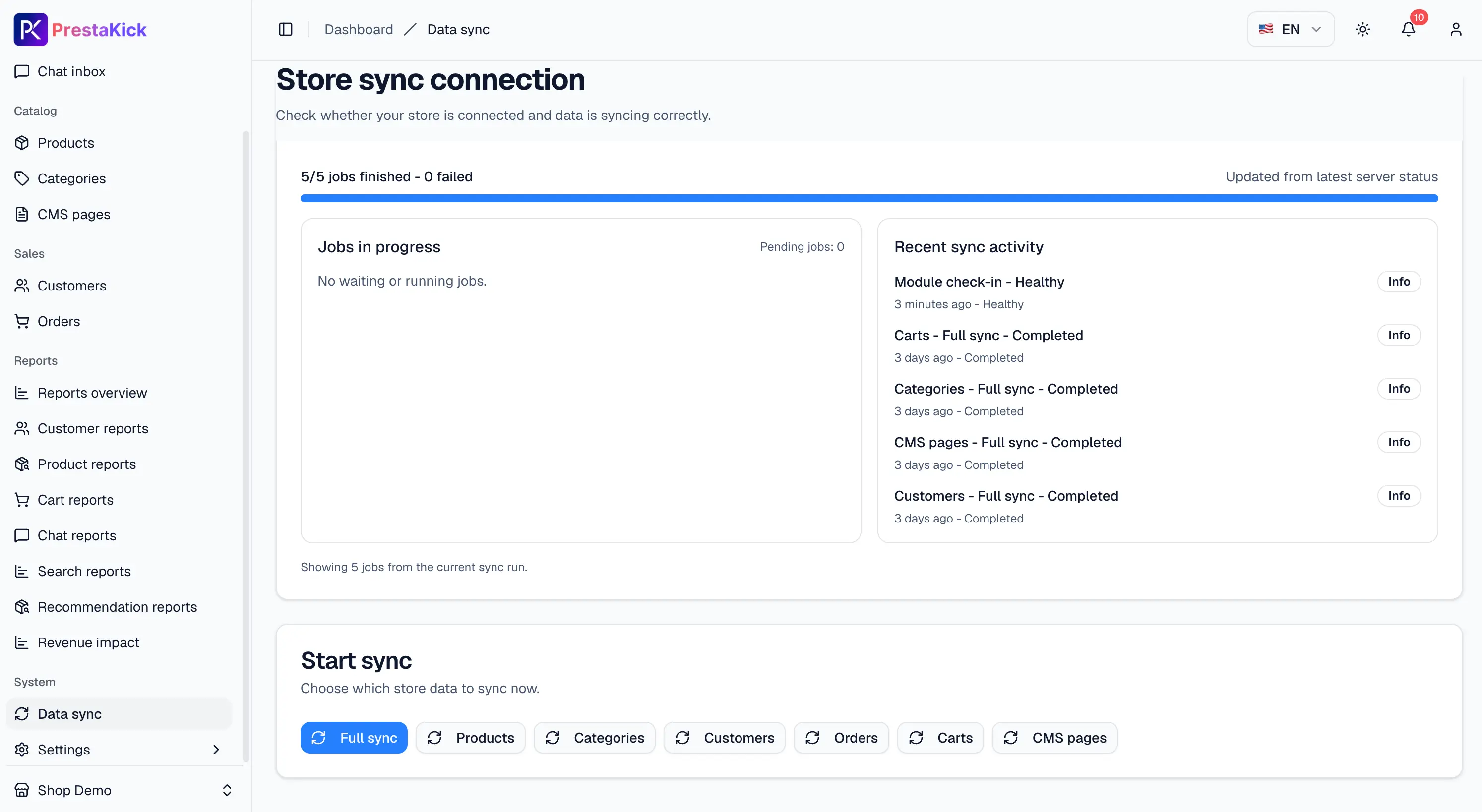
After the first connection, run Full sync from Data sync or the connection area. Do not publish the Widget simply because the progress indicator finishes. Reconcile the records and inspect each failure before retrying.
- Product counts are reasonable compared with PrestaShop.
- Categories, hierarchy and important CMS pages are complete.
- Languages, translations and product images are correct.
- Jobs are Completed/Succeeded with no unexplained Failed records or queue backlog.
- Important embeddings are current; regenerate them if content changed but AI results remain old.
9. Test privately with Preview IP before going public
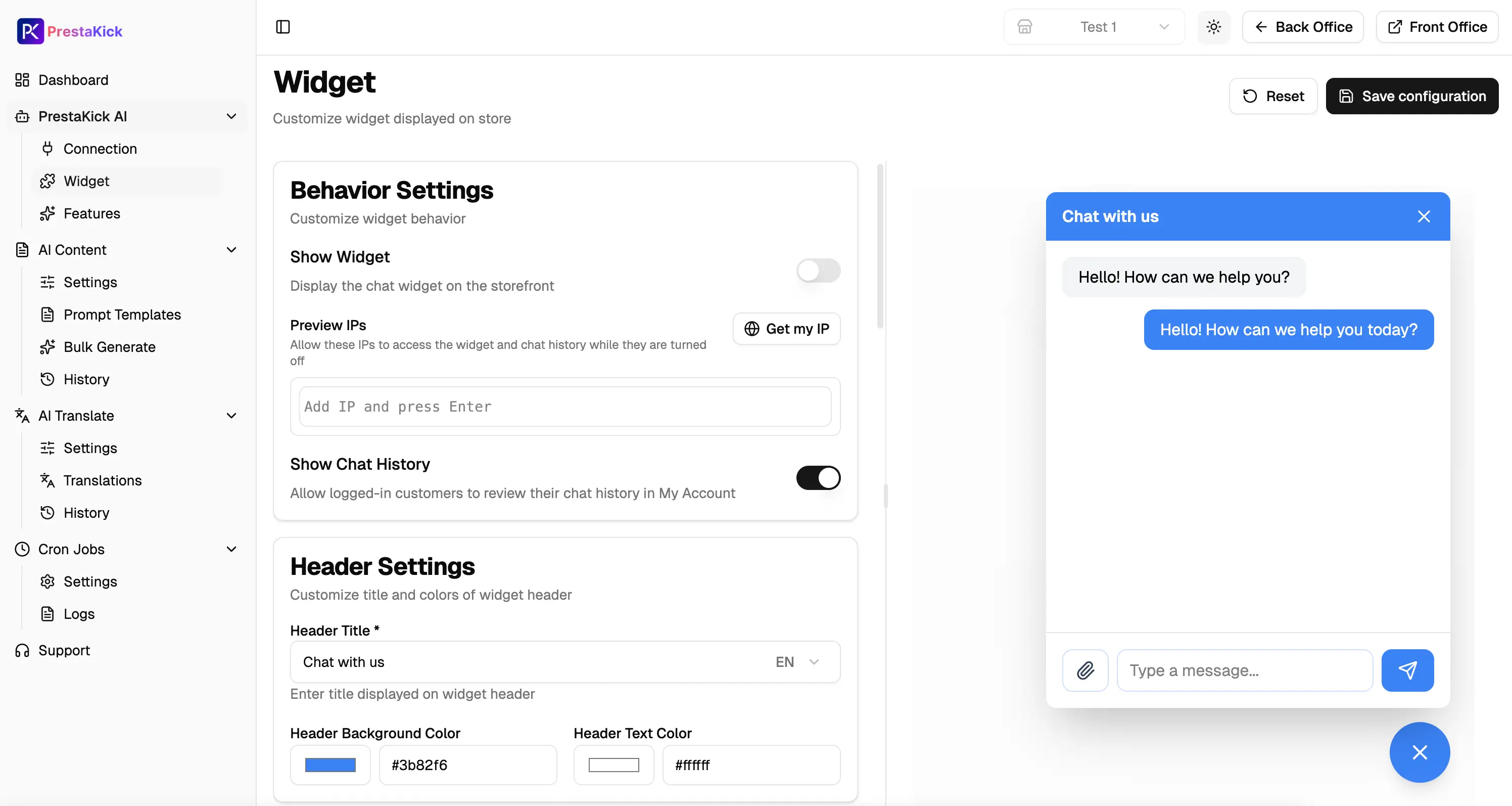
In Widget → Behavior Settings, keep Show Widget off, choose Get my IP, add the address to Preview IPs, save, and visit the storefront from that network. You can now test while other visitors cannot see the Widget.
Reuse a prepared test set covering materials, outdoor use, budget, comparison, compatibility, returns, delivery and human handoff. For Vision Search, try an exact product, another angle, a similar item and an unrelated image. A good answer is factual, localized, on-brand, linked to the right product, and honest when evidence is missing.
10. Set the tone and answer limits in AI Settings
On the PrestaKick Dashboard, open Settings → AI settings and edit Assistant instructions. Describe communication style and operating rules; do not paste the catalog because synchronized product data already supplies that context.
Save the instructions and repeat the same tests. Correct source data when facts are wrong. Adjust Assistant instructions when the facts are right but the wording or behavior is not.
You are the shopping assistant for [Store name].

Address the customer directly and answer in a friendly, clear and concise way.
State only information found in product data or store policies.
Never invent specifications, discounts, stock, delivery times or warranty promises.
When information is insufficient, say so and ask a useful follow-up question.
Escalate complaints, refunds and decisions requiring store staff.
Recommend the best fit for the customer's needs, not simply the most expensive option.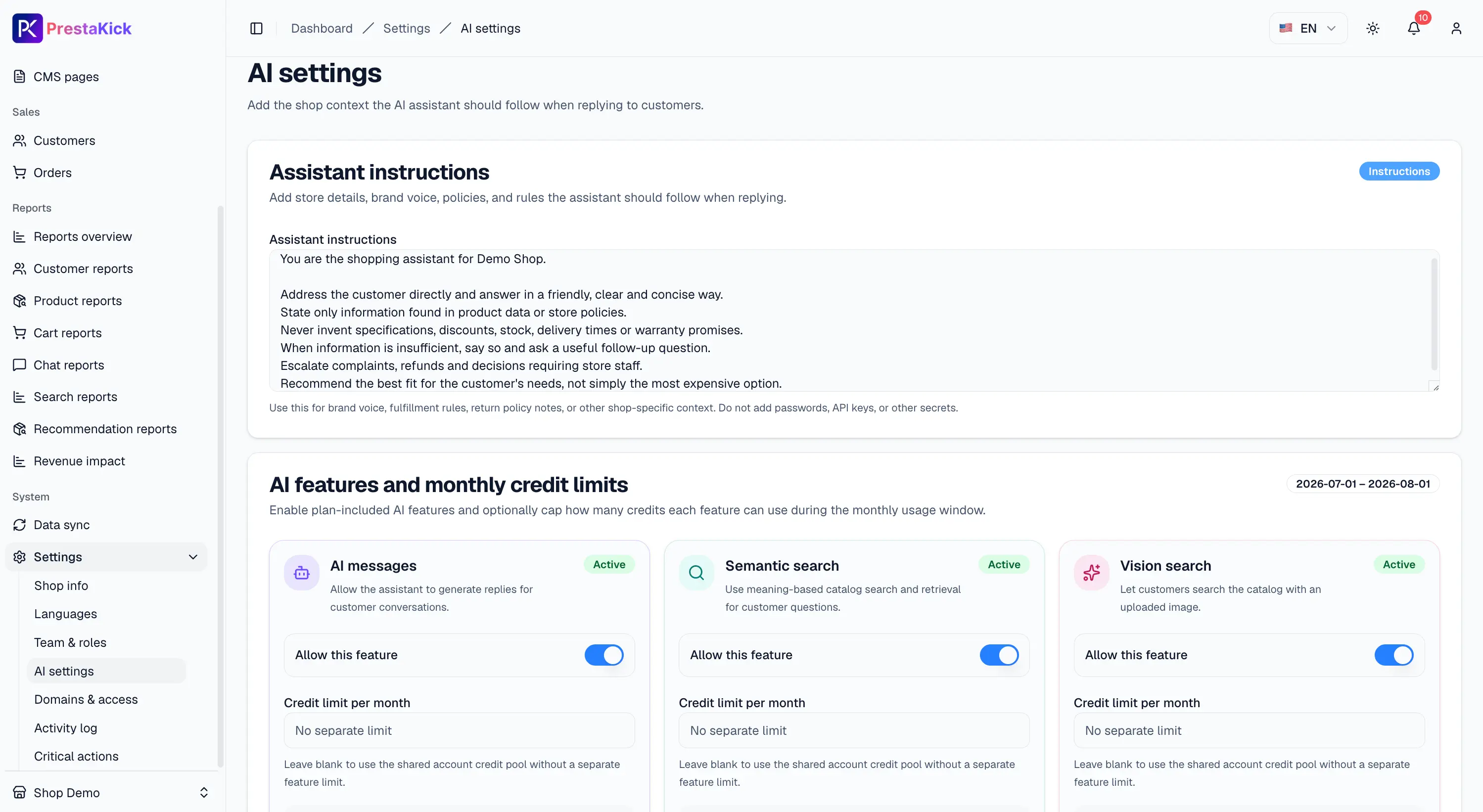
11. Enable only the AI features you actually need
Test AI Messages, Semantic Search, Vision Search and Product Recommendations separately, and match them with Semantic Search, Vision Search and Display Related Products in the module. Disable unused features to avoid unnecessary AI credit consumption.
Keep text indexing on when chatbot retrieval or Semantic Search is used. Vision Search needs image indexing. Set monthly credit limits per feature so you can evaluate capabilities under a controlled budget.
- No chatbot: disable AI Messages.
- No meaning-based search: disable Semantic Search.
- No image search: disable Vision Search and consider disabling image indexing.
- No related products: disable Product Recommendations in both PrestaKick and the module.
12. Publish the Widget only after testing is complete
- Confirm the module is Connected and Healthy.
- Confirm cron runs every minute and Logs contain no new errors.
- Confirm Full sync is complete and important data is present.
- Test chatbot, text search, visual search and recommendations.
- Test the Widget on desktop and mobile.
- Enable Show Widget and save the configuration.
- Continue reviewing conversations to identify data, synchronization or instruction issues.
Quick optimization checklist
- ☐ Products have complete names, descriptions and specifications.
- ☐ Attributes, variants and descriptions do not conflict.
- ☐ Images show the right product and color clearly.
- ☐ Categories and CMS pages contain useful information.
- ☐ AI Content and every translation have been reviewed.
- ☐ The module is Connected and Healthy; cron runs every minute without errors.
- ☐ Full sync is complete and its data has been reconciled.
- ☐ The Widget has been tested privately with Preview IP.
- ☐ Assistant instructions match the brand voice.
- ☐ Every AI feature has been tested; unused features are disabled or credit-limited.
- ☐ Show Widget is enabled only after results meet the required standard.
Conclusion
Accurate AI is not the result of one very long prompt. A dependable sales assistant needs strong product data, correct images, complete multilingual content and reliable synchronization.
Treat PrestaKick like a new sales colleague: provide accurate material, deliver updates promptly, define communication rules and test before direct customer contact. When data, synchronization, configuration and testing are all sound, chat, search and recommendations become more valuable while AI credits are used efficiently.